
Create API Access Keys
In the Sigfox backend, go to
Group > [Your group name] > API Access > NewSelect the following options
DEVICES_MESSAGES [R]
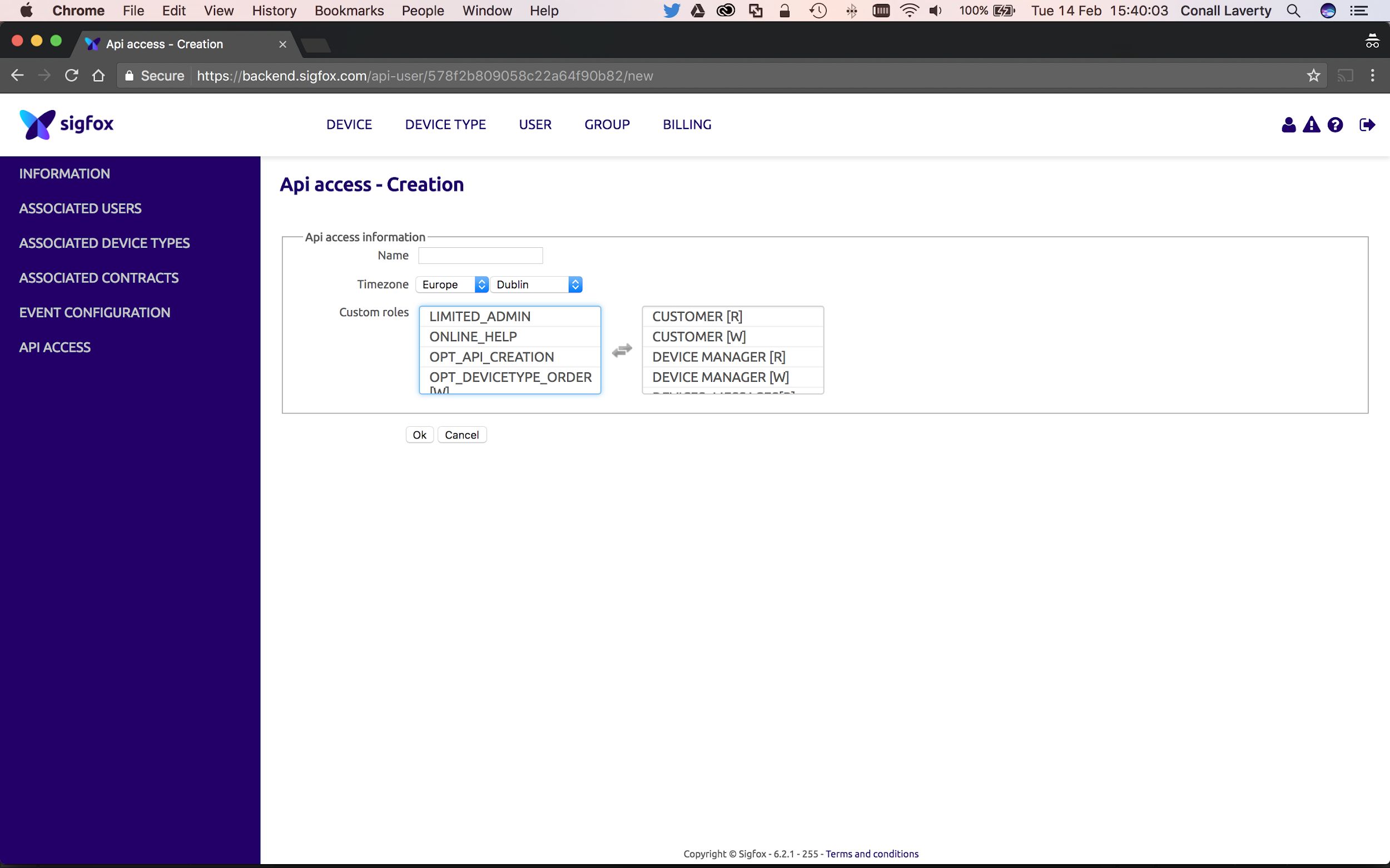
Once checked, an API login and password will be created for you.
Add API Access Keys to Wia
Go to the Wia dashboard.
Open the Space dropdown, by clicking on the Space name in the top left corner, and click Settings. Select Integrations in the sidebar.
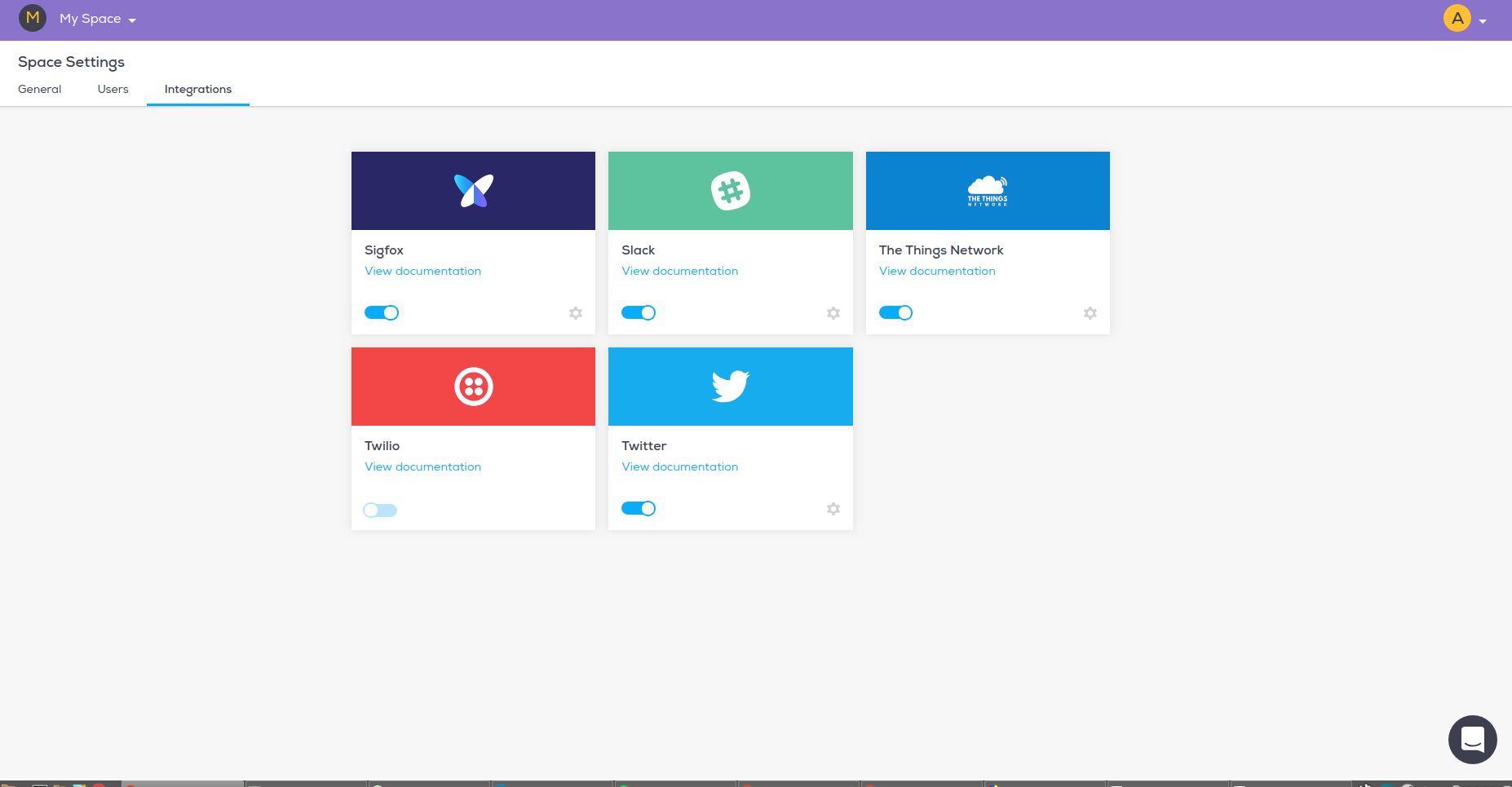
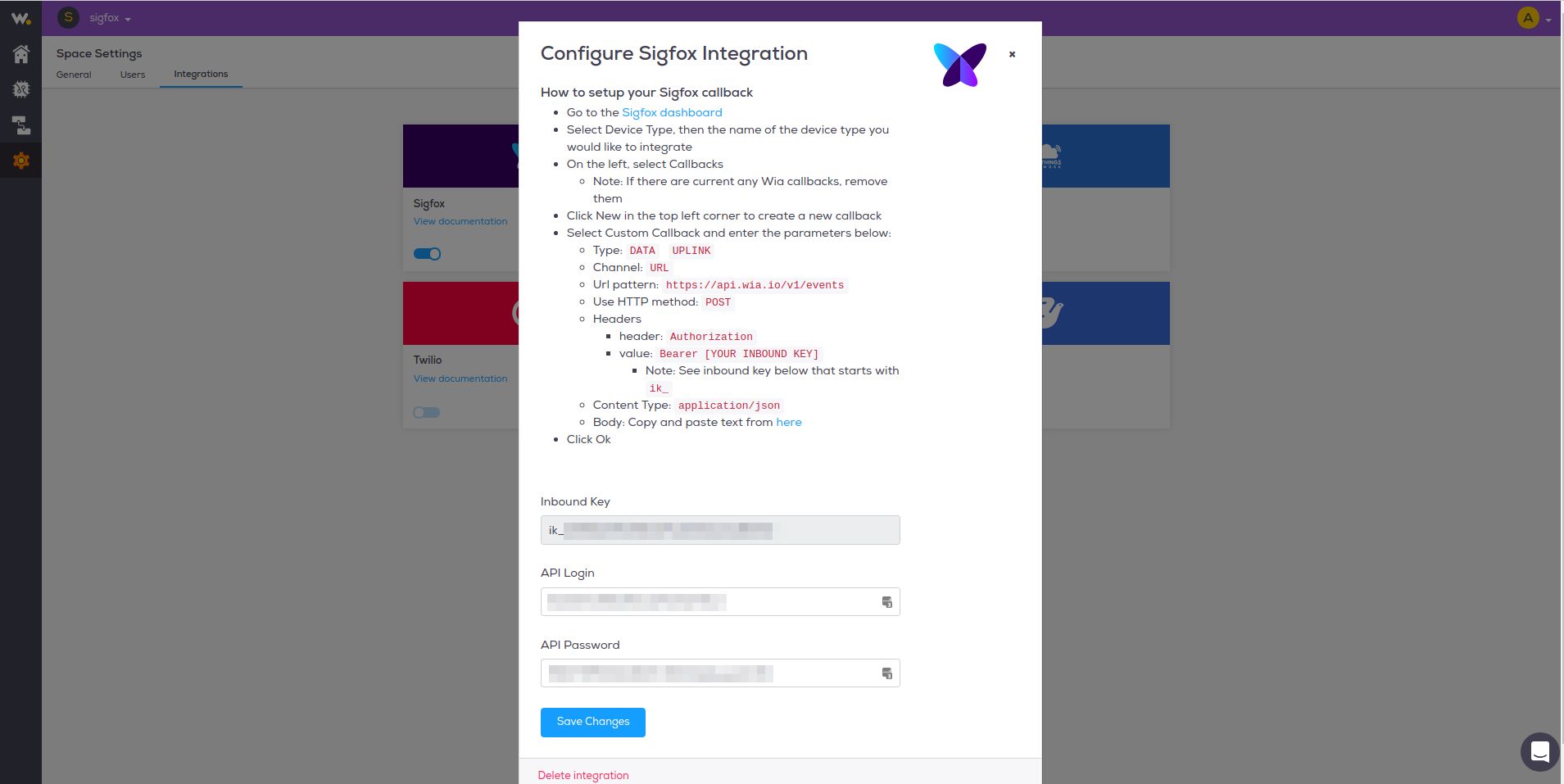
Enter your API Access Login and Password. Note: This is not the one you use to login to the Sigfox backend dashboard, it is the one you just created.
To access your inbound key, click on the settings icon on the Sigfox card.
You should now see your Inbound Key for Sigfox created.
Setup your Sigfox Callback
Go back to the Sigfox dashboard
Select
Device Type, then under name column of the device type list you would like to integrateOn the left, select Callbacks
Note: If there are currently any Wia callbacks, remove them
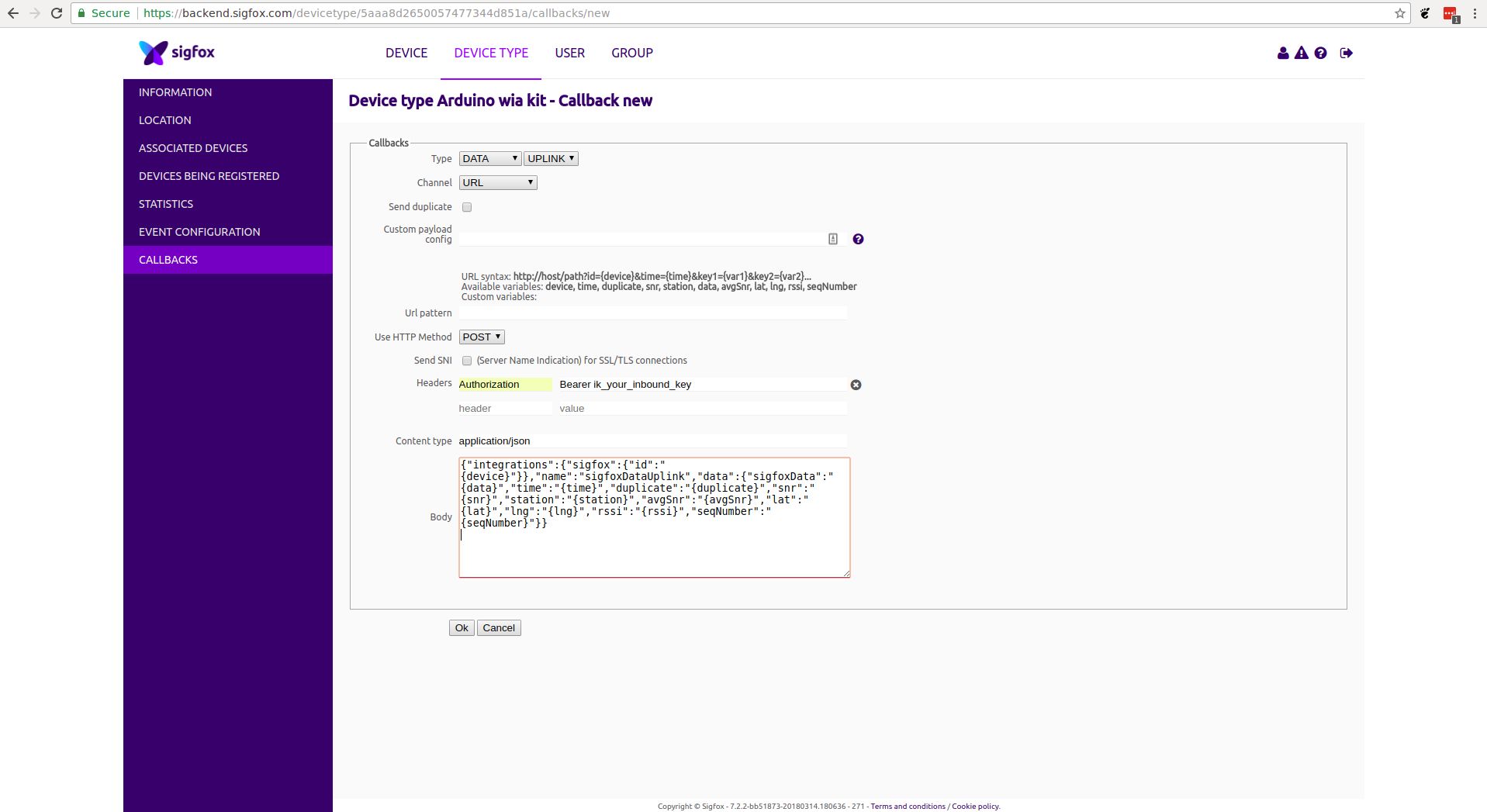
Click New in the top left corner to create a new callback
Select Custom Callback
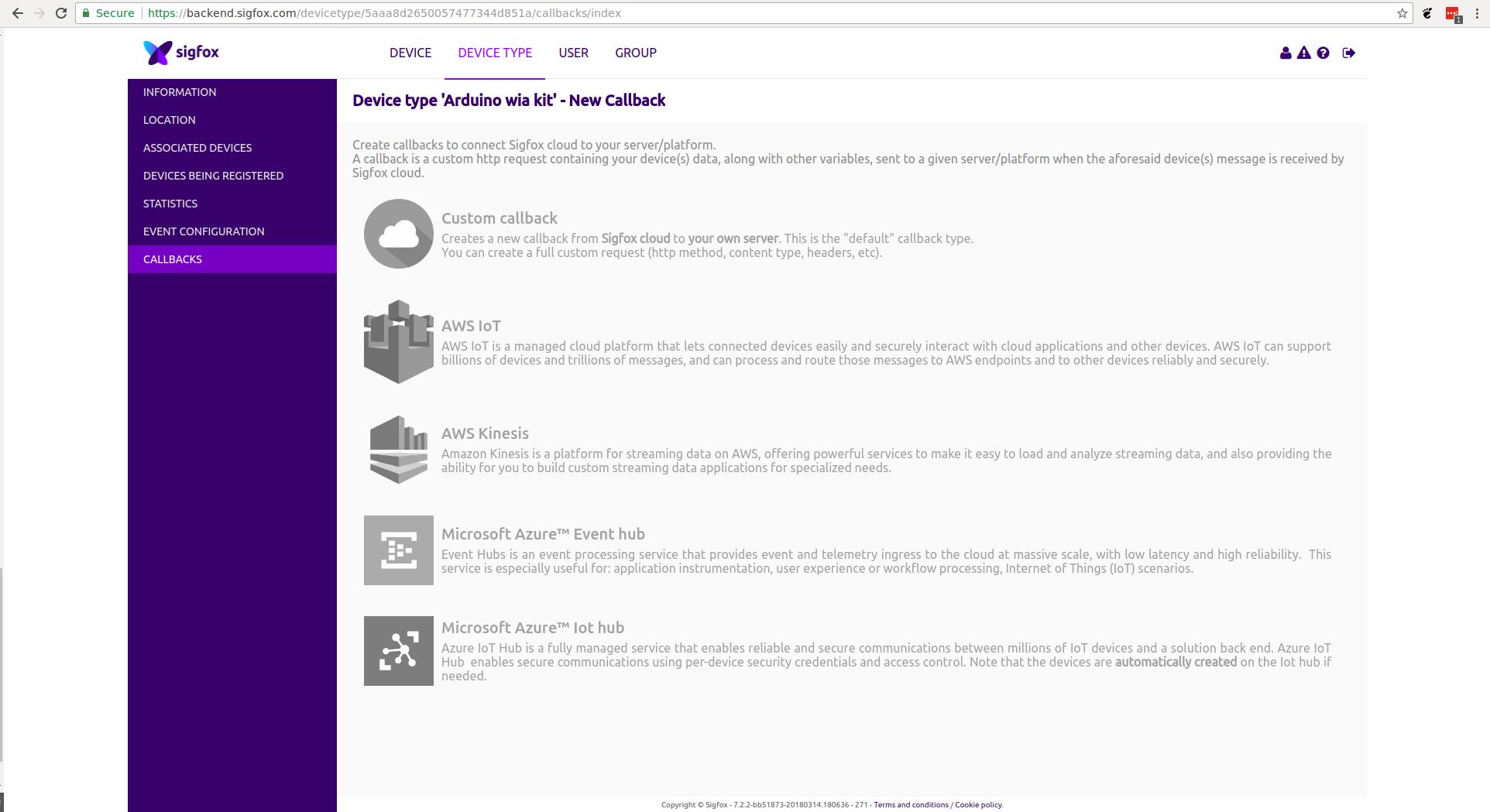
Enter the values below in each of the fields
Type:
DATA``UPLINKChannel:
URLUrl pattern:
https://api.wia.io/v1/eventsUse HTTP method:
POST
Headers
Header | Value |
|---|---|
Authorization | Bearer Note: See Inbound Key below that starts with |
Content Type:
application/jsonBody: Copy and paste the text below.
Click Ok to save the callback.
Once you device sends an event it will automatically appear in the Wia dashboard.